AFTER INSTALL
Your first login: the small choices that make WordPress feel solid
Once WordPress loads for the first time, the job isn’t finished—it’s just changed. This is the moment to slow down, sign in at /wp-admin, and make a few careful decisions that prevent headaches later. You don’t need a dozen plugins or a perfect design yet. You need a site name that matches your brand, a clear admin email, and a quick scan for anything that looks “default” or out of place before you start publishing.
Start with Settings. Set your Site Title and Tagline, confirm your timezone, and choose whether you want search engines to index the site (leave indexing on unless you truly want a private staging site). Next, go to Permalinks and pick a clean structure—“Post name” is the usual choice for blogs and small business sites. Then check Users: make sure your admin account uses a strong password, and create a separate editor account for daily work if you can.
Now take care of the boring-but-critical basics: updates, backups, and security. Run any available WordPress, theme, and plugin updates right away. Remove themes and plugins you won’t use to reduce clutter and risk. If your host offers backups, turn them on; if not, install a reputable backup plugin and schedule automatic backups. Finally, verify SSL: your site should load with https, and your WordPress Address and Site Address should match.
Finish by setting up how you’ll publish. Create your core pages (Home, About, Contact) and delete the sample post and page. Set a simple navigation menu, choose a lightweight theme, and add only essential plugins (forms, SEO, caching—if your host doesn’t handle it). Do a quick test: open the site in an incognito window, click every menu item, and submit your contact form once. If that works, you’re ready to build.
Take it one step at a time—your site is live, and now it’s getting reliable.
— Metaforge
— After Install —
What to Check in Your First Login
A quick visual guide to the screens you’ll touch right after installing WordPress: dashboard basics, permalinks, users, updates, and a simple homepage check.

Your WordPress dashboard, ready for setup
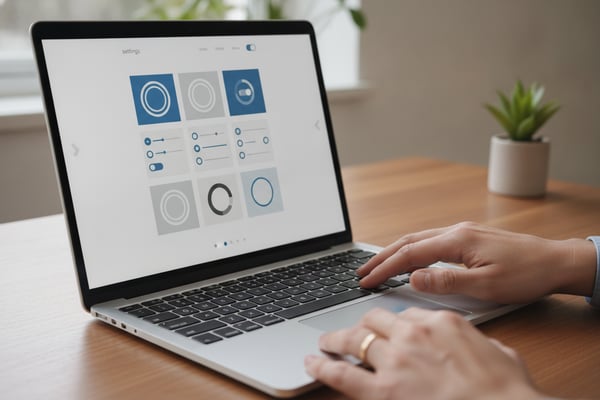
Settings first: site title, timezone, and permalinks
Secure your admin login and password
Create your main user and remove defaults
Open your site in a new tab and confirm it loads

MEET THE GUIDE
Alex Metaforge
Founder & WordPress Install Guide · Est. 2024
Alex built Metaforge after watching too many first-time site owners get stuck right after the “Install” button—confused by domains, DNS, databases, and the first login. The goal here is simple: remove the noise and walk you through the clean path from brand-new hosting to a working WordPress dashboard. Every step is written for beginners, with plain-language checkpoints, the most common mistakes called out early, and “what to do next” guidance so you don’t finish the install and immediately feel lost.
“If you can follow a checklist, you can install WordPress—one clear step at a time.”

Priya N.
HOSTING & DNS CHECKS
Translates host dashboards into plain steps—SSL, DNS records, and “why isn’t it propagating?” included.

Marco L.
WORDPRESS TROUBLESHOOTING
Helps untangle file permissions, wp-config.php edits, and the classic “white screen” moments.

Sam K.
SETTINGS & FIRST LOGIN
Keeps your first hour in WordPress focused—permalinks, users, updates, and the essentials only.
— Next steps —
Finish setup, then go live with confidence
You’ve installed WordPress—now lock in the basics: permalinks, site title, SSL, users, updates, and backups. Follow the post-install checklist, or reach out if something looks off (login, redirects, or DNS).
Clear steps, no fluff—built for first-time installs.