WORDPRESS INSTALL GUIDE
Install WordPress the simple way—step by step
Everything you need for a fresh WordPress install: what to prepare, how to set up hosting and a domain, one-click or manual installation, and the first settings to change after login.
Beginner-friendly, no fluff—just the steps that work
— Install in 3 simple steps —
Everything you need for a clean WordPress install
Metaforge breaks WordPress setup into clear, beginner-friendly steps: get your checklist ready, connect hosting + a domain, install WordPress (one-click or manual), then lock in the basic settings so you can start building right away.
Know what to gather first
Before you click “Install,” confirm the essentials: a domain, hosting login, SSL, and (if needed) database details. Starting with the right info prevents the most common setup dead-ends.
— Fast prep, fewer surprises
Set up hosting + domain
Point your domain to your host, enable SSL, and verify you can access your hosting dashboard. This guide keeps DNS and control panel steps simple, so WordPress installs smoothly.
— Get online with confidence
Install, then do first login setup
Use a one-click installer or upload WordPress manually—then immediately handle the basics: site title, permalinks, updates, and admin security. You’ll leave with a stable, ready-to-build site.
— Ready for your first pages
THE INSTALL LETTER
On buying a domain, choosing hosting, and getting WordPress live in one clean pass
If you’ve never installed WordPress before, the hardest part usually isn’t the “install” button—it’s knowing what to prepare, what choices actually matter, and what to ignore. Metaforge exists to make this simple: one straightforward path from “I need a site” to “I can log in.” You’ll start by gathering a few essentials (a domain name, hosting access, and a place to store your login details), then you’ll set up the basics of hosting so WordPress has a home.
From there, you’ll pick an install method that matches your comfort level. A host’s one-click installer is the fastest and works for most people, but a manual install is useful when you want full control or your host doesn’t provide tools. Either way, the goal is the same: connect your domain, enable SSL (so you get https), create the WordPress admin account, and confirm you can reach both your site and your wp-admin login without errors.
Once WordPress is running, don’t rush into themes and plugins yet. Do the small, high-impact steps first: set your site title and tagline, confirm your timezone, choose your permalink structure, and remove the default sample content. Then update WordPress, themes, and plugins immediately, create a non-admin daily user, and turn on backups. These basics prevent the common early problems—broken links, weird dates, login confusion, and avoidable security issues.
This guide stays intentionally narrow: no fluff, no upsells, no “growth hacks.” Just the steps that get you installed and stable, with clear checkpoints so you always know what “done” looks like. If you get stuck—DNS delays, database errors, file permissions, or a blank screen—use the same flow to backtrack to the last checkpoint and fix only what’s actually broken.
Take it step by step. A working WordPress install is closer than it feels.
— Metaforge
— Quick Visual Walkthrough —
What a WordPress install looks like
A few reference snapshots of the key moments: picking a host, running a one-click installer, uploading files manually, and confirming your first successful login.
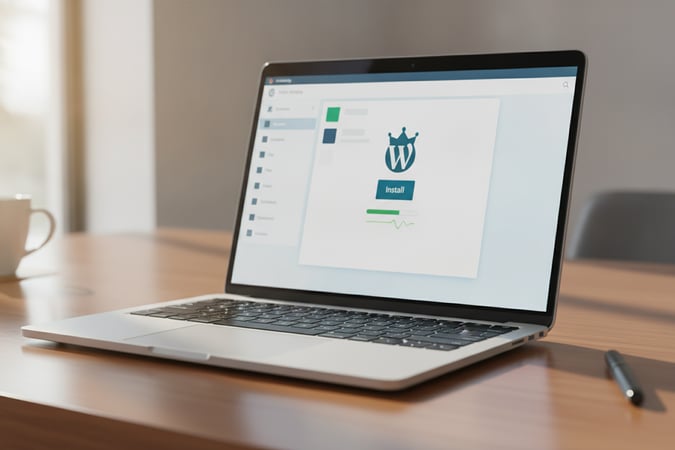
One-click install: a few fields, then you’re live

Domain + DNS: the quiet step that unlocks everything
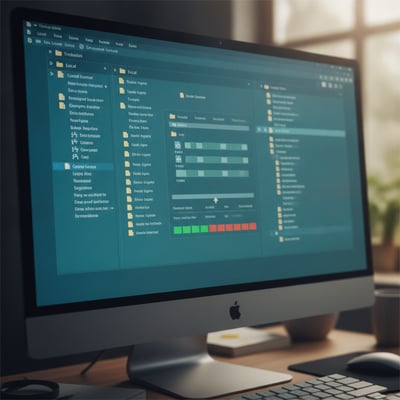
Manual method: upload files via FTP

Create a database and user (manual installs)

First login: head straight to Settings
— Ready for the next step? —
Install WordPress with less guesswork
Use the pre-install checklist, choose your install method (one-click or manual), then follow the first-login setup steps so your site is secure, readable, and ready to build.
Beginner-friendly steps—no jargon, no fluff.